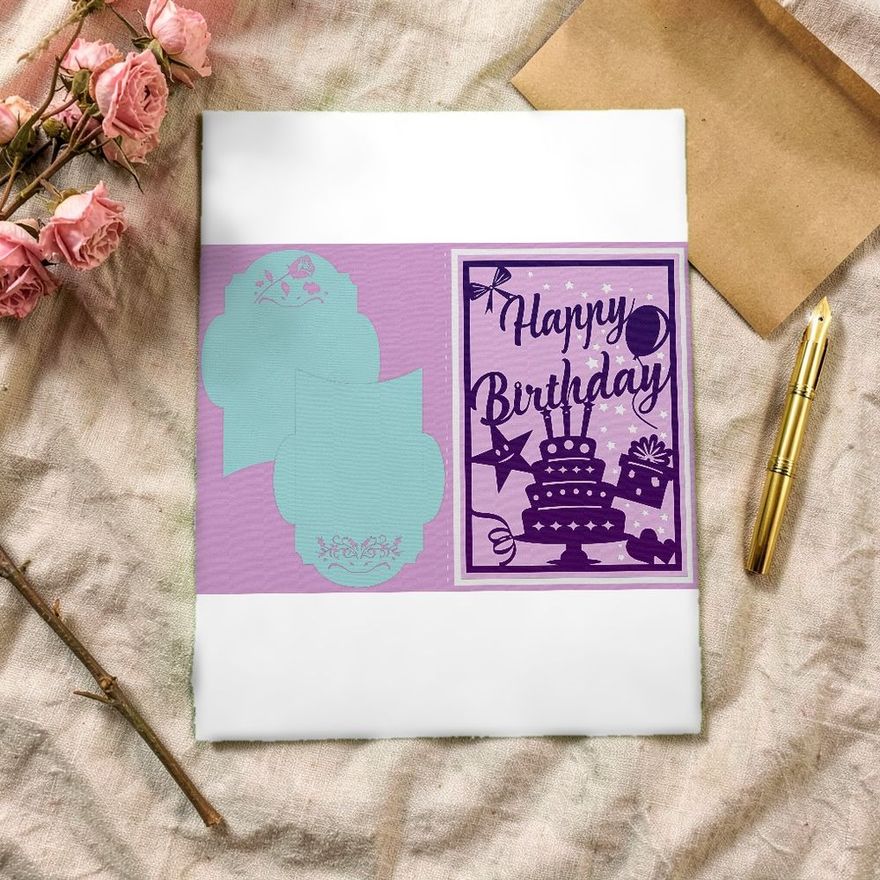
To cut a birthday card on a Cricut, you upload the SVG, set its size, tell the software which line is a fold and attach that line to the card base, then cut with the cardstock setting that matches your paper. Most spoiled cards come from the two middle steps: a card that came in at the wrong size, or a fold line that was cut straight through. The menu names below follow Cricut's help center at the time of writing. Design Space changes, so each step also says what the control does.
Upload the SVG and Check the Size
Cut files usually arrive as a zip folder. Unzip it, choose Upload in Design Space, pick the SVG and add it to the Canvas. Choose the SVG over a PNG or JPG in the same folder: an SVG uploads with its layers separate, as one group, while a JPG or PNG comes in as a single flat layer.
Design Space does not always open an SVG at the size the designer intended. Before anything else, select the whole design and read its width and height.
- A side-fold A2 card is 8.5 x 5.5 inches flat and 4.25 x 5.5 inches folded.
- A 5 x 7 card is 10 x 7 inches flat.
Resize the entire design as one group with the proportions locked. If you resize the base alone, the layers will no longer fit it. Which size to choose, and which envelope goes with it, is laid out in card sizes and envelopes.
Turn the Fold Line Into a Score Line
In most card SVGs the fold is a thin straight line down the middle of the base. It imports as a cut line, and if you leave it that way the machine slices the card in half.
- Ungroup the design and select the fold line.
- Open the Operation menu and change that line from Cut to Score.
- Select the score line together with the card base and choose Attach. It is in the Layers panel on a computer and under Actions in the mobile app.
Attach is the step people miss. Without it, the software moves every piece to wherever saves paper, and the score line lands somewhere else on the mat. Grouping is not enough, because a group holds only on the Canvas.
If the file has no fold line, add a score line from the Shapes menu, stretch it to the height of the card, center it on the base and attach it.
Which Scoring Tool Fits Which Machine
| Machine | Scoring tool, per Cricut's help center |
|---|---|
| Maker 5 | Scoring Tool, or Scoring Wheel and Double Scoring Wheel |
| Maker, Maker 3, Maker 4 | Scoring Stylus, or Scoring Wheel and Double Scoring Wheel |
| Explore 5 | Scoring Tool |
| Explore 4 and earlier | Scoring Stylus |
| Venture | Scoring Stylus |
| Joy 2 | Scoring Tool for Joy 2 |
| Joy, Joy Xtra | None listed |
The scoring wheels work only on Maker machines. Cricut pairs the single wheel with cardstock up to 80 lb and the double wheel with 100 lb and coated stock. On Explore 5 and Joy 2 the two tools share one clamp, and Design Space tells you when to swap them. With a Joy or Joy Xtra, delete the line and score the fold by hand with a ruler and a bone folder.
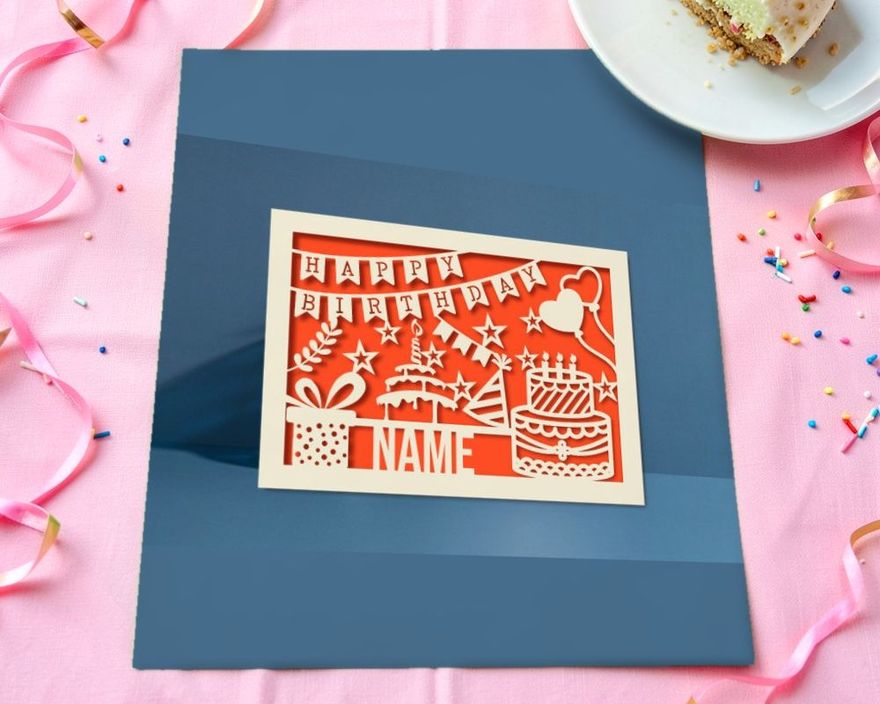
Standard Mat or Card Mat
There are two ways to hold a card in the machine, and they suit different files.
A standard mat holds a flat sheet of cardstock. The machine cuts the whole card base, front and back in one piece, and scores the fold. Use it for any card SVG, for layered designs and for envelopes. Mats for Explore and Maker machines come in 12 x 12 and 12 x 24 inches, and the cutting area on a 12 x 12 mat is 11.5 x 11.5 inches (29 x 29 cm), enough for an A2 or a 5 x 7 base. The Joy Xtra mat is 8.5 x 12 inches, and the original Joy's is only 4.5 inches wide. When you cut from Letter paper, change Material Size to match on the mat preview screen, so nothing is placed past the edge of the sheet.
A card mat holds a card that is already folded. The back panel slides under a plastic divider, so the blade reaches only the front. It is made for Cricut's pre-folded insert and cutaway cards. Card Mat 2 x 2, for Explore and Maker machines, holds four cards at once in Cricut's five sizes: R10 (3.5 x 4.9 inches), R20 (4.25 x 5.5, the A2 size), R30 (4.5 x 6.25), R40 (4.75 x 6.6) and S40 (4.75 x 4.75).
The original Joy Card Mat takes only the first three. A 5 x 7 card is too large for any card mat, since 4.75 x 6.6 inches is the most Cricut recommends. Choose On Card Mat when Design Space asks how you will load the material, and on an Explore or Maker slide the white star wheels to the center of the roller bar first, so they leave no tracks on the cards.
For a downloaded SVG with its own base and layers, use the standard mat.
Cardstock Settings That Cut Cleanly
Design Space lists cardstock by weight. After you press Make, choose Browse All Materials and pick the setting closest to the number on your pack. The mats are the ones Cricut's cardstock instructions pair with each weight.
| Your paper | Setting in Design Space | Mat |
|---|---|---|
| 65 lb (176 gsm) | Light Cardstock – 65 lb (176 gsm) | LightGrip (blue) |
| 80 lb (216 gsm) | Medium Cardstock – 80 lb (216 gsm) | StandardGrip (green) |
| 100 lb (270 gsm) | Heavy Cardstock – 100 lb (270 gsm) | StrongGrip (purple) |
| Glitter cardstock | Glitter Cardstock | StrongGrip; test first |
| Fine lettering or lace-like detail | Cardstock (for intricate cuts) | The mat for that weight |
The Joy machines have no StrongGrip mat and use StandardGrip instead. The heaviest plain cardstock setting is 100 lb, so for 110 lb start there with the pressure on More. On an Explore Air 2 or older, turn the dial to Custom to reach the full list.
A few habits prevent most cutting problems:
- Test first. Cut a small star in one corner before the full design. If the cut is close, choose More or Less in the pressure menu instead of changing the material.
- Check before unloading. Lift a corner of the cut with the mat still in the machine. If it has not gone through, press Go again and the machine makes another pass over the same path.
- Use a clean, sharp blade. Cricut's fixes for torn cuts include clearing debris from the blade tip, trying less pressure and, last, fitting a new blade.
- Peel the mat, not the paper. Turn the mat face down and bend it away from the card, so the card stays flat instead of curling.
Smooth, solid-core cardstock gives the cleanest edges. More on choosing it in the best paper for handmade cards.
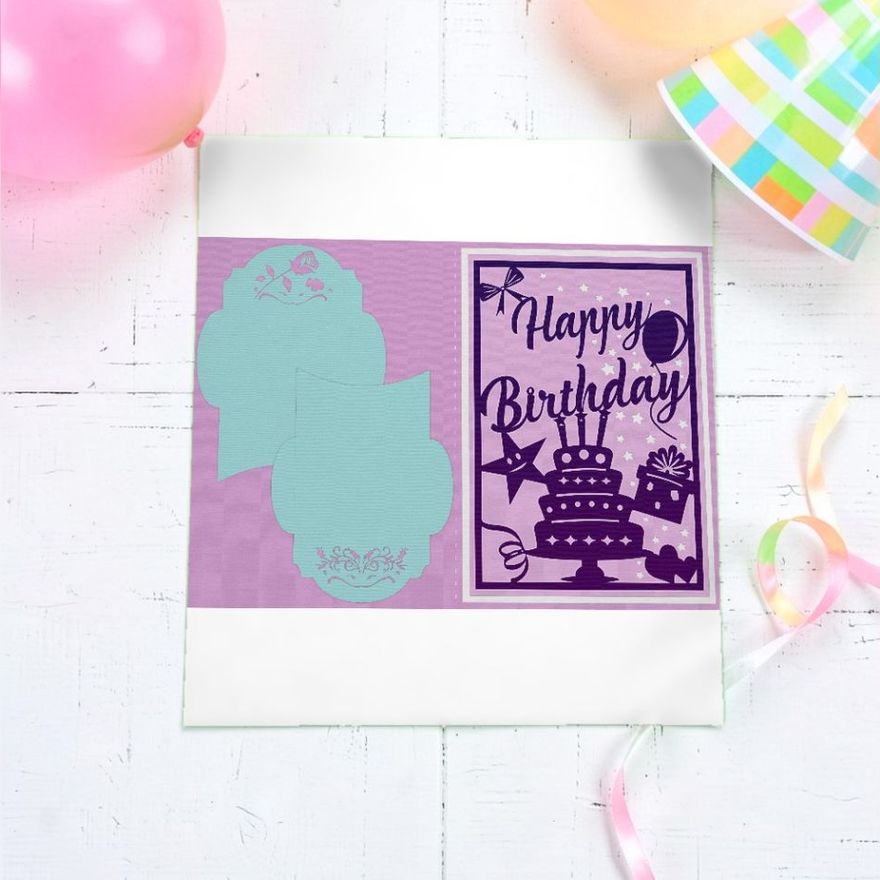
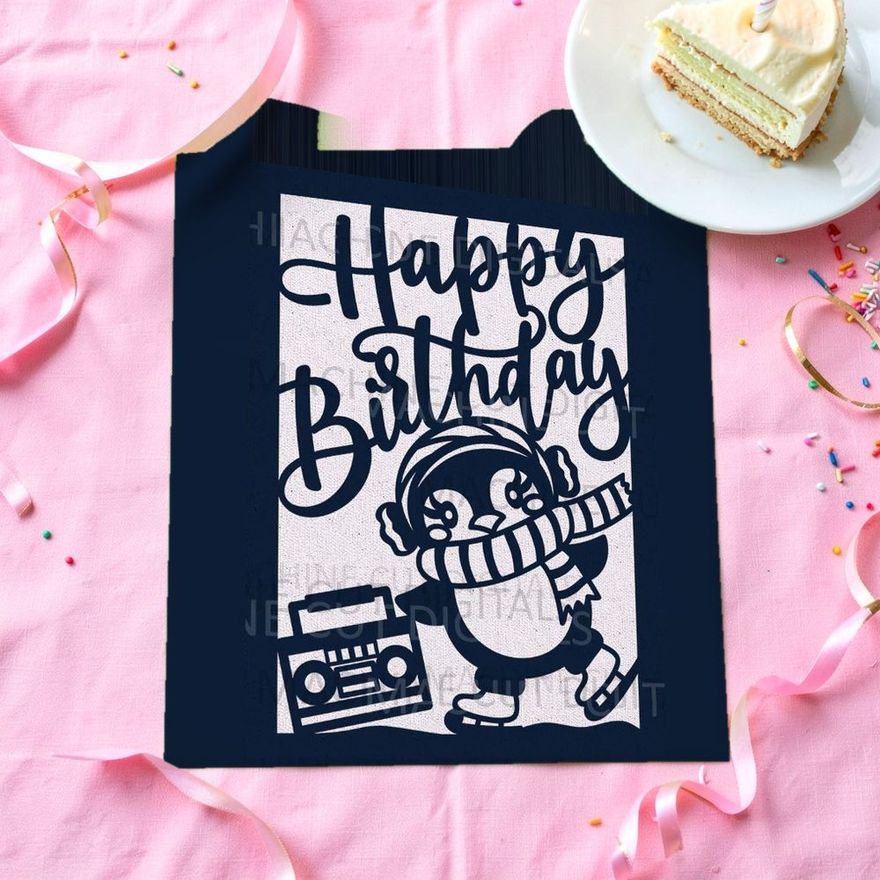
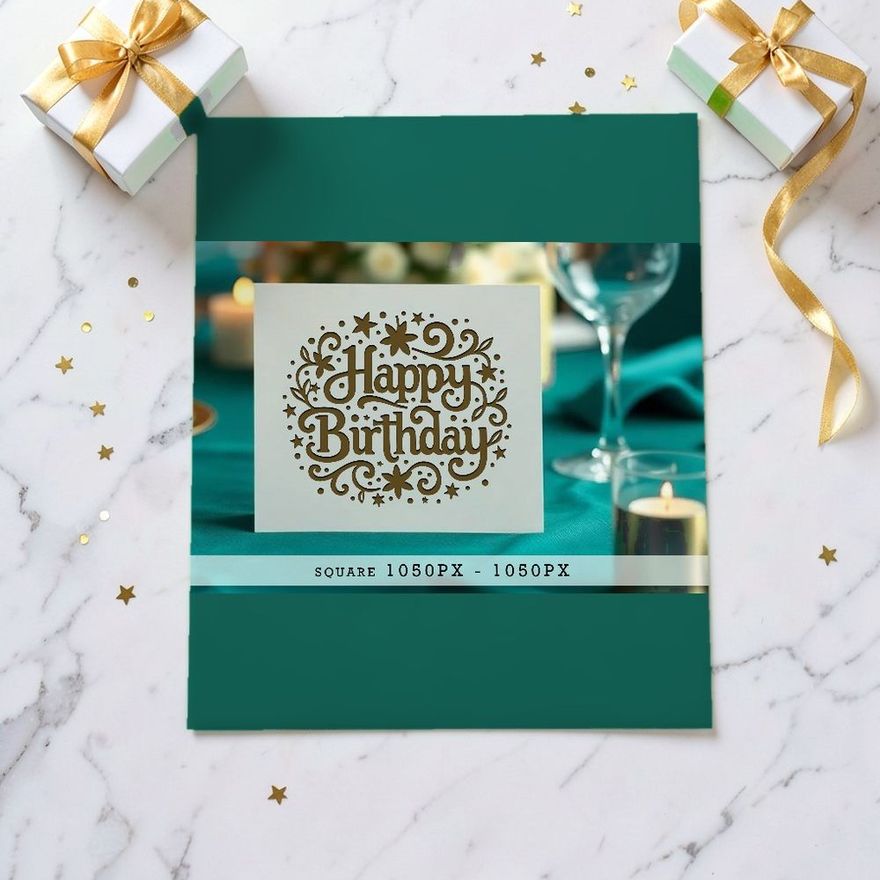
The first two designs below are named for Cricut, and the third includes envelopes by its name, which saves hunting for a matching size.
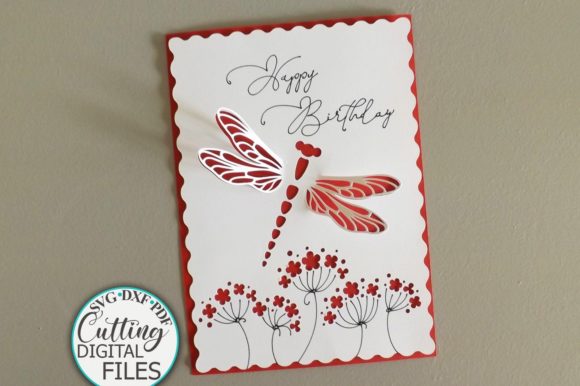
Birthday Card Svg Cricut
See the listing ↗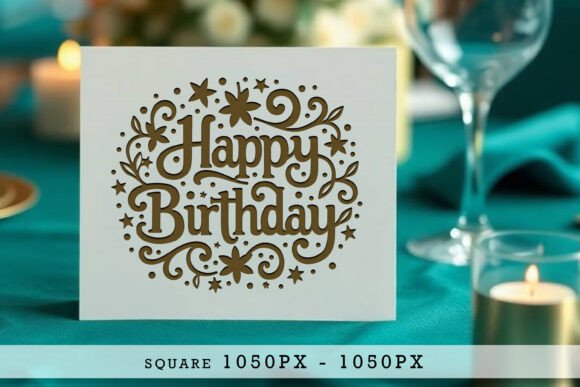
Cricut Happy Birthday Card SVG
See the listing ↗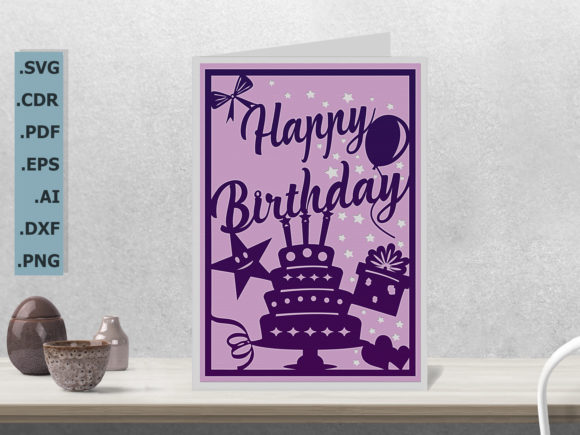
Happy Birthday Card SVG & 3 Envelopes
See the listing ↗From the collection DIY Birthday Cards. New Creative Fabrica members get 10 free downloads, and any of these can be one of them.
Layered Designs and the Order to Glue Them
Design Space sends each color to its own mat, so every layer of a layered card is cut from a separate sheet. Before cutting, recolor the layers on the Canvas to match the cardstock you own. Pieces that share a color share a mat.
When everything is cut:
- Stack the pieces dry, with no glue, to see how they line up.
- Start with the back layer and work forward. Many designers number the layers; if not, the largest solid piece is the back.
- Put glue on the back of the piece you are adding, a little way in from the edges so none squeezes out.
- Use fine-tip liquid glue for thin lettering and frames, double-sided tape for large flat panels, and small foam squares where you want a shadow between two layers.
- Build the whole stack first, then mount it on the card front.
These three are layered or bundled designs by name, good practice for the routine above.
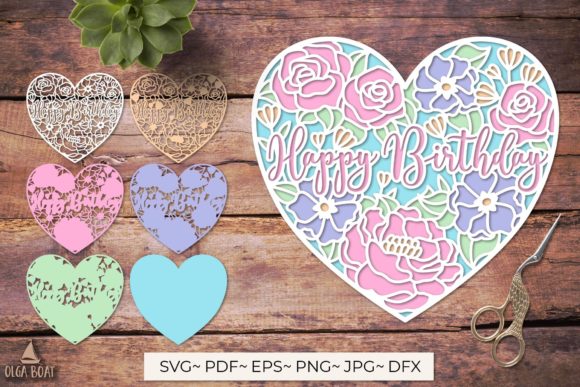
3d Happy Birthday Card Svg Layered Paper
See the listing ↗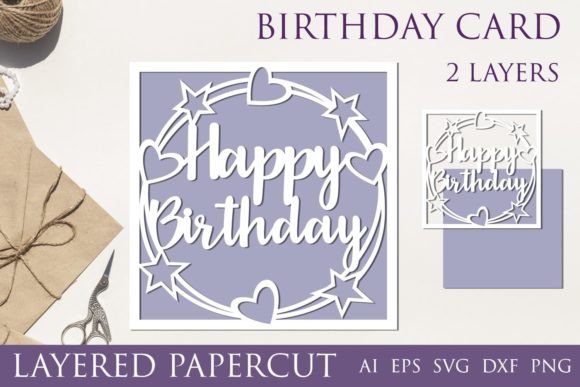
Layered Happy Birthday Card Svg
See the listing ↗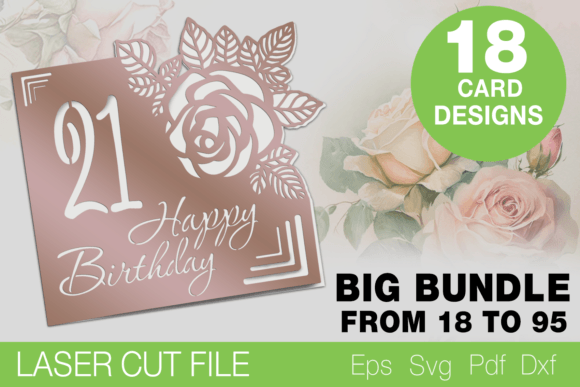
Happy Birthday Card SVG Bundle
See the listing ↗From the collection DIY Birthday Cards. New Creative Fabrica members get 10 free downloads, and any of these can be one of them.
Inserts and Writing Space
An insert is a panel of contrasting paper that sits behind a cut-out front, so the design shows in color. Cut it a quarter inch smaller than the card front: 4 x 5.25 inches for an A2 card. Glue it to the inside of the front panel, with glue only where the front is solid. Designs made for insert cards cut small corner slits in the front instead, and the insert tucks into them with no glue.
On a dark card base, add a light panel inside for the message. The machine can also draw the greeting with a pen: change the text's Operation to Pen, attach it to the panel, and pick a font that offers the Writing style, because ordinary fonts are drawn as outlines.
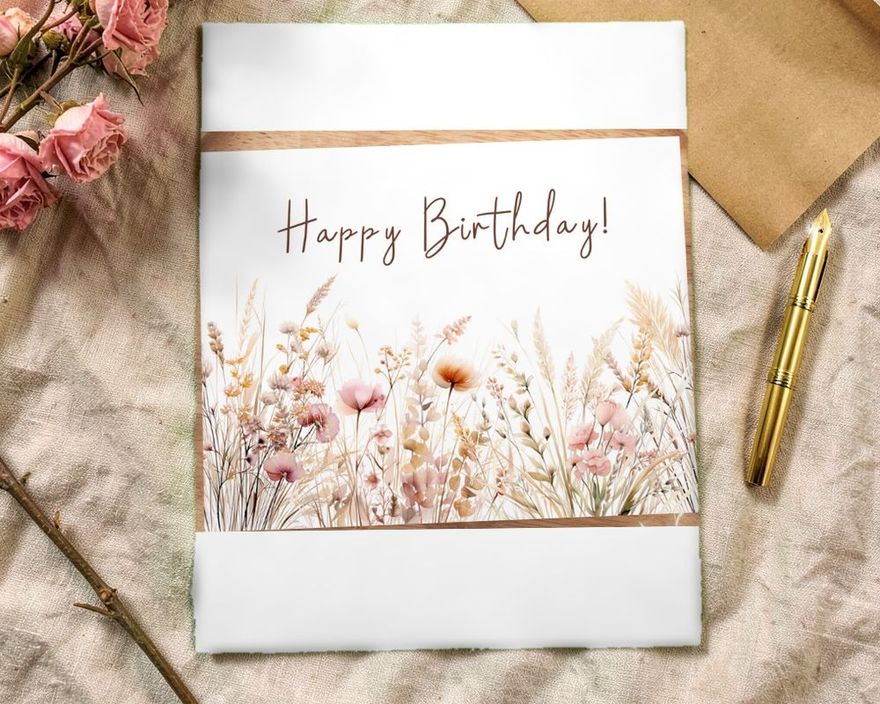
Cutting the Envelope
An envelope is cut flat as one piece with four flaps, then folded on score lines. Treat those lines the way you treated the card fold: change them to score and attach them to the envelope shape.
- Check the flat size on the Canvas. Up to 11.5 inches each way fits a 12 x 12 mat. If either side is longer, as with many envelopes for a 5 x 7 card, use the 12 x 24 mat or a different envelope style.
- Use lighter paper than the card. Text-weight paper or 65 lb cardstock folds without cracking, and anything heavier makes a stiff, bulky envelope.
- Glue the bottom flap to the two side flaps only.
Machine Accessories for Card Projects
Cards use the same few accessories each time: a scoring tool, the right mat for the card weight, and pens if the machine writes the message. Confirm each one is listed for your machine model.
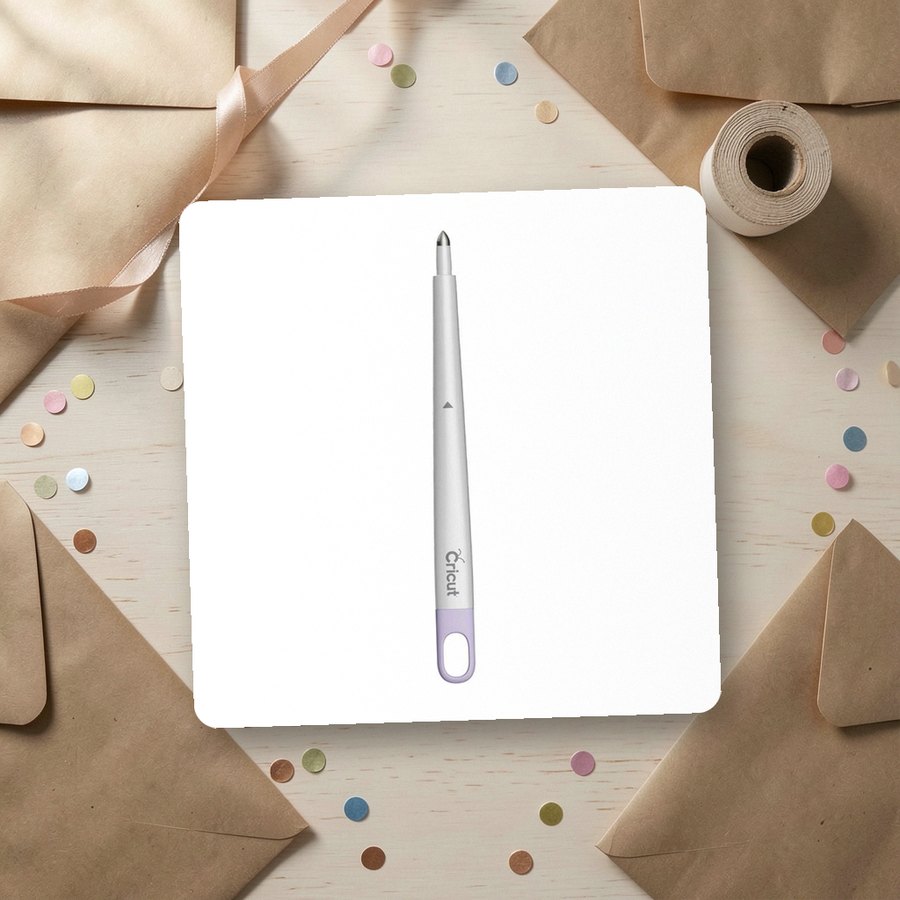 Scoring stylus for cutting machinesCricutSee it on Amazon
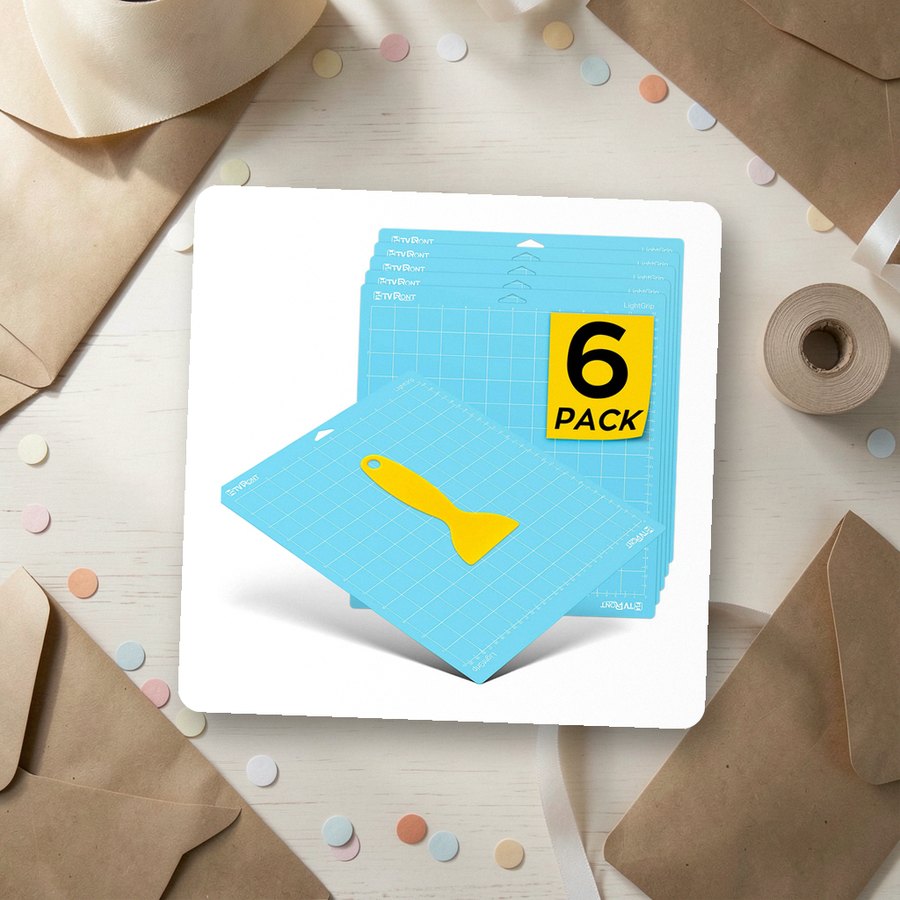 Light-grip 12 x 12 cutting matsHTVRONTSee it on Amazon
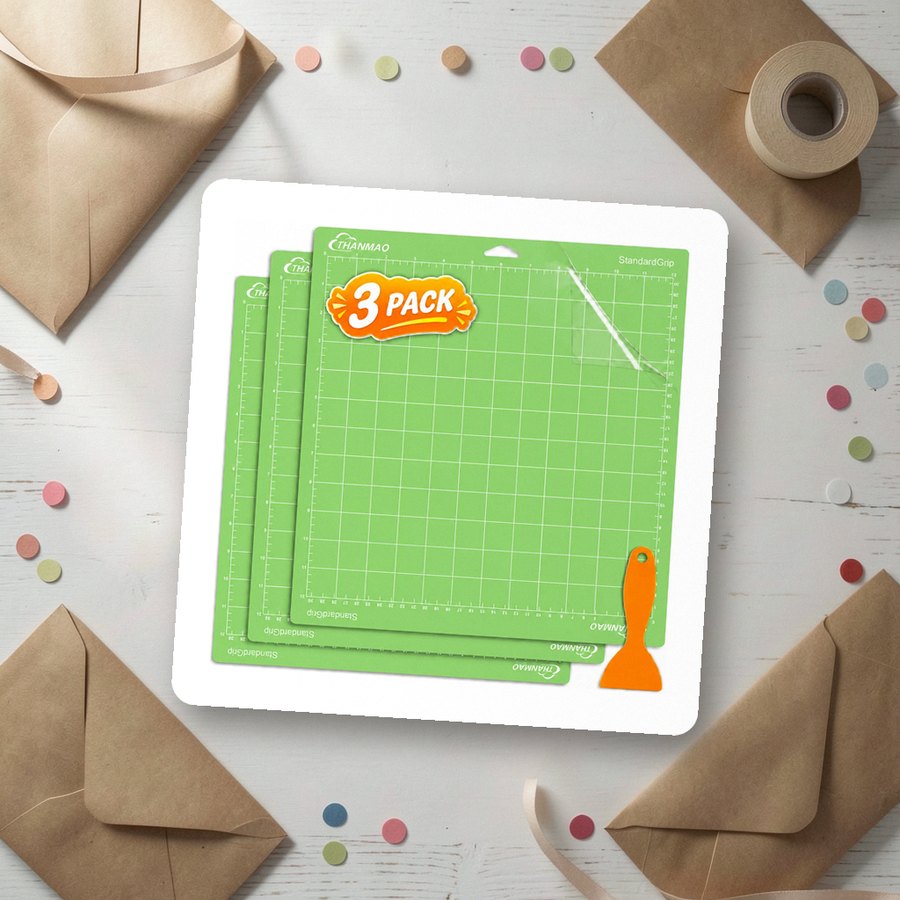 Standard-grip 12 x 12 cutting matsTHANMAOSee it on Amazon
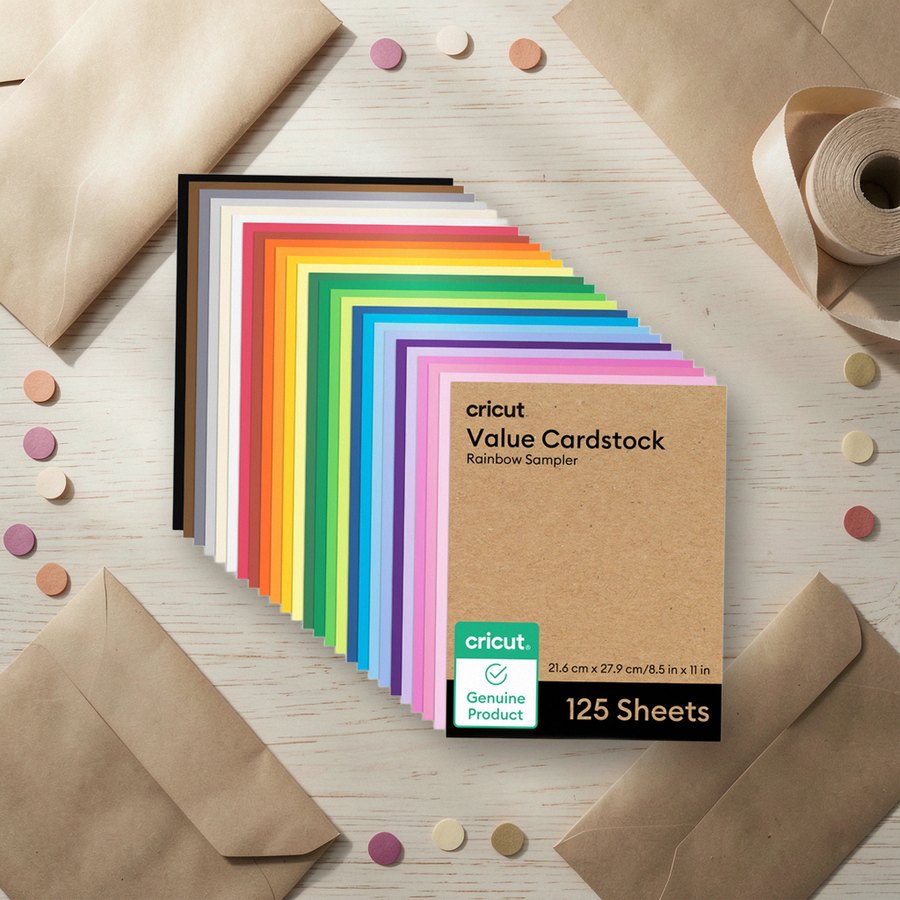 Cardstock color sampler, letter sizeCricutSee it on Amazon
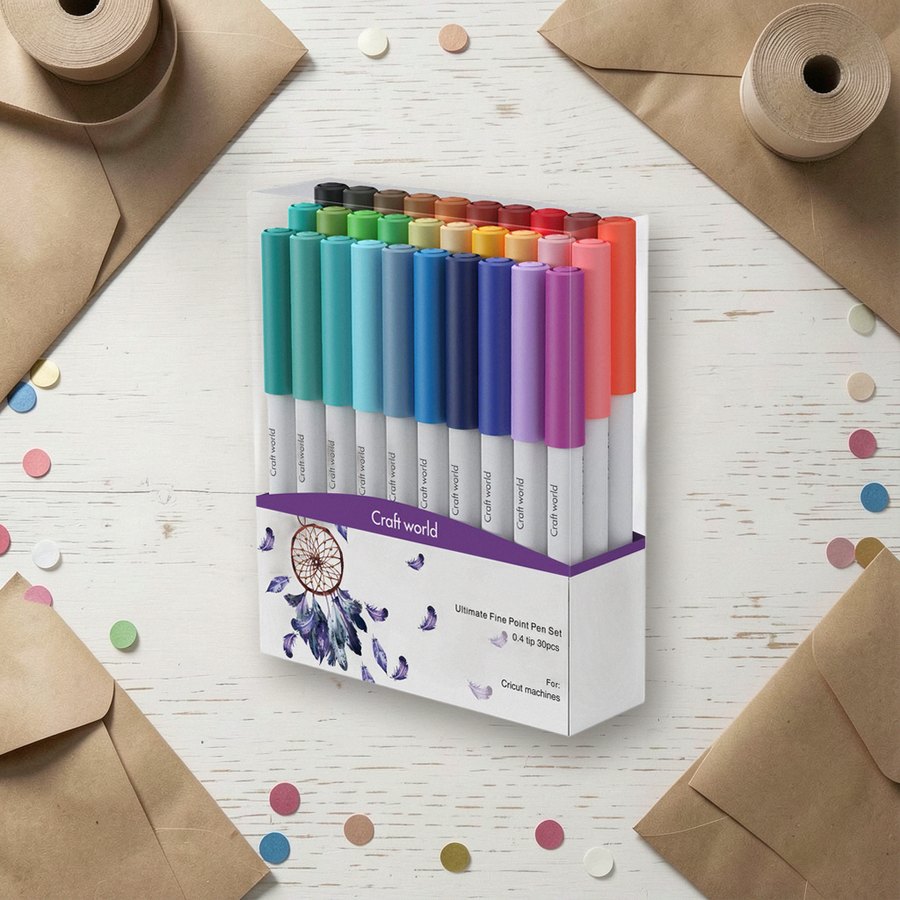 Fine-point pens for cutting machinesCRAFT WORLDSee it on Amazon
As an Amazon Associate we earn from qualifying purchases.
Before You Cut the Good Paper
Run the design once on copy paper with a light paper setting. A test cut shows a missing score line, a wrong size or a layer that does not fit, and it costs one sheet. Then cut the base first, so you can fold it and check it against the envelope.
The DIY birthday cards collection is made up of SVG designs. If you want moving parts next, the same shapes can stand on a step in a pop-up birthday card.
Card Collections for This Guide
DIY Birthday Cards8 hand-picked · open the collection →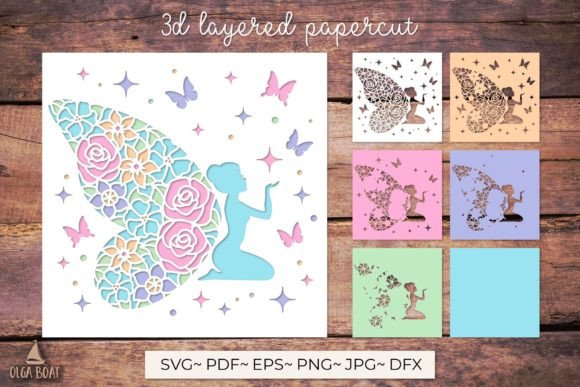 Birthday Card Ideas8 hand-picked · open the collection →
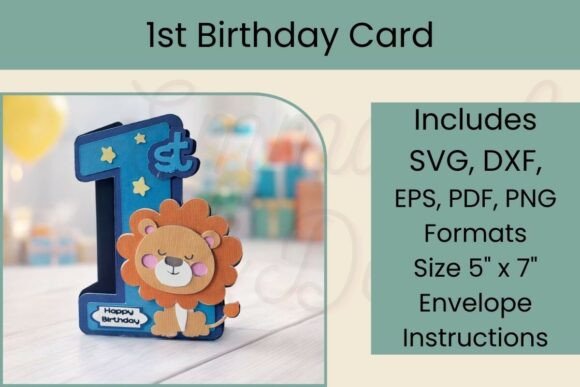 Cute & Aesthetic Birthday Cards8 hand-picked · open the collection →